


Guide · Utility
Where Winds Meet Desktop Widget (Daily Assistant)
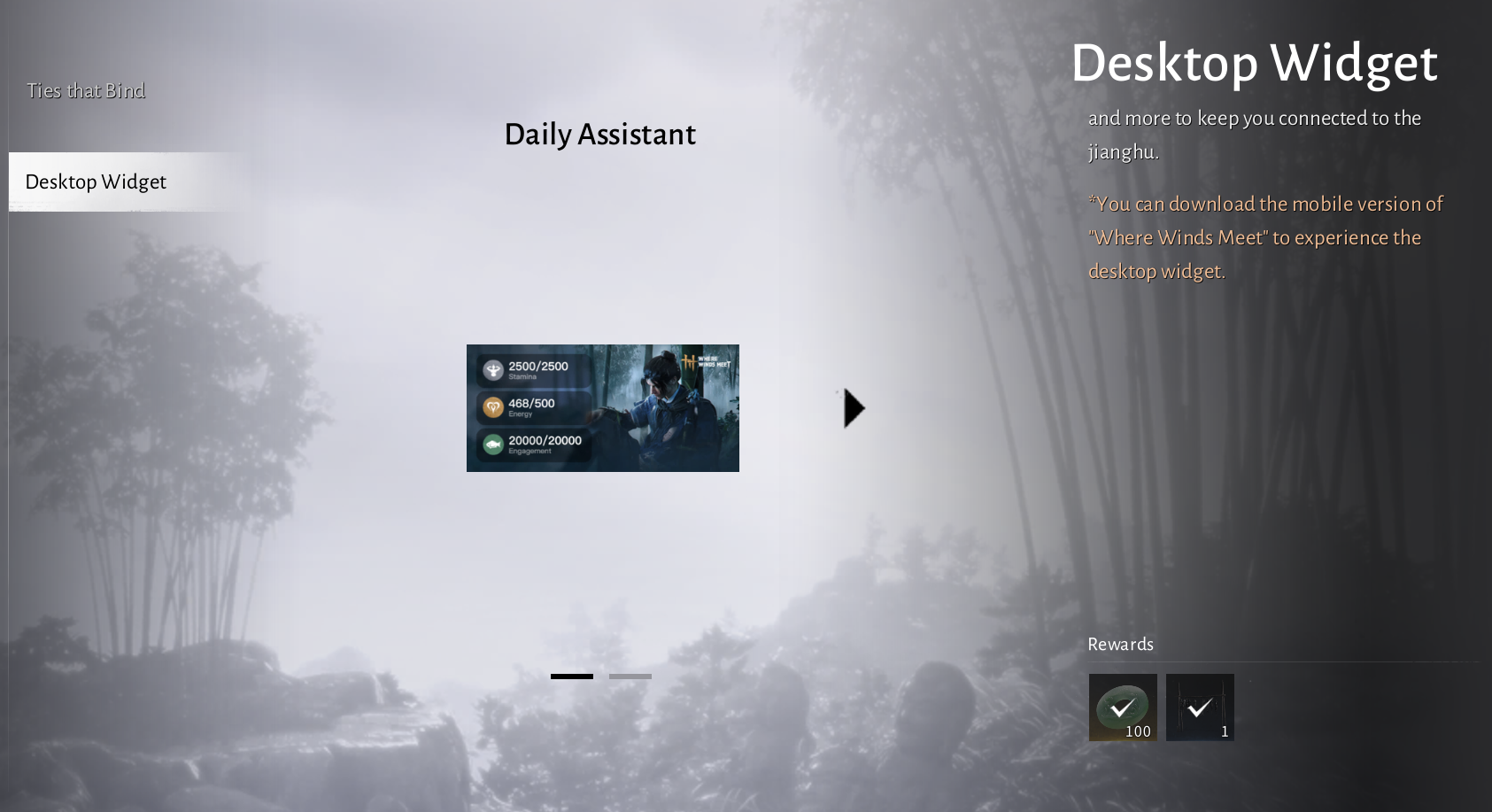
If you searched for Where Winds Meet desktop widget, you probably saw a “Daily Assistant Desktop Widget” mention and then couldn’t find a real PC widget download. In practice, most reports point to a mobile home‑screen widget — and on desktop you typically want a lightweight “always visible” reset timer + checklist instead.
TL;DR
- There is no official PC Where Winds Meet desktop widget download most players can find today. The “daily assistant” people talk about is usually a mobile widget that appears after installing the mobile game.
- Best desktop alternative: pin a small window for a reset countdown + a checklist so you can plan around daily/weekly windows without tab chaos.
- If you only want “what resets when”, use Reset timer and optionally keep Checklist next to it.
Why this keyword is confusing
In a Dec 10, 2025 community thread, players noted that “Where Winds Meet desktop widget” is a misleading label: it shows up as a mobile home‑screen widget (Android reported), and configuration may require logging into the mobile game. See the Reddit discussion →
Note: Reddit content can change. Treat it as community context, not official documentation.

Option 1: Use the mobile widget (Android / iOS)
This is what most people mean when they search for Where Winds Meet desktop widget: a mobile home-screen widget that surfaces daily assistant / reset info.
Android (home-screen widget)
- Install the official Where Winds Meet mobile app (the widget typically ships with the app).
- Long-press your home screen → open the Widgets panel.
- Search for Where Winds Meet and add the Daily Assistant widget.
- If it says it can’t be configured, open the mobile game and log in once, then retry the widget setup.
iPhone/iPad (availability varies)
- Install the Where Winds Meet iOS app.
- On your home screen: long-press → Edit Home Screen → tap +.
- Search for Where Winds Meet in the widget gallery.
- If you don’t see any widget, your region/app version may not support it yet (or it’s Android-only).
Community questions about Apple Watch support exist, but availability depends on the iOS app’s widget implementation.
Troubleshooting (if the widget is missing)
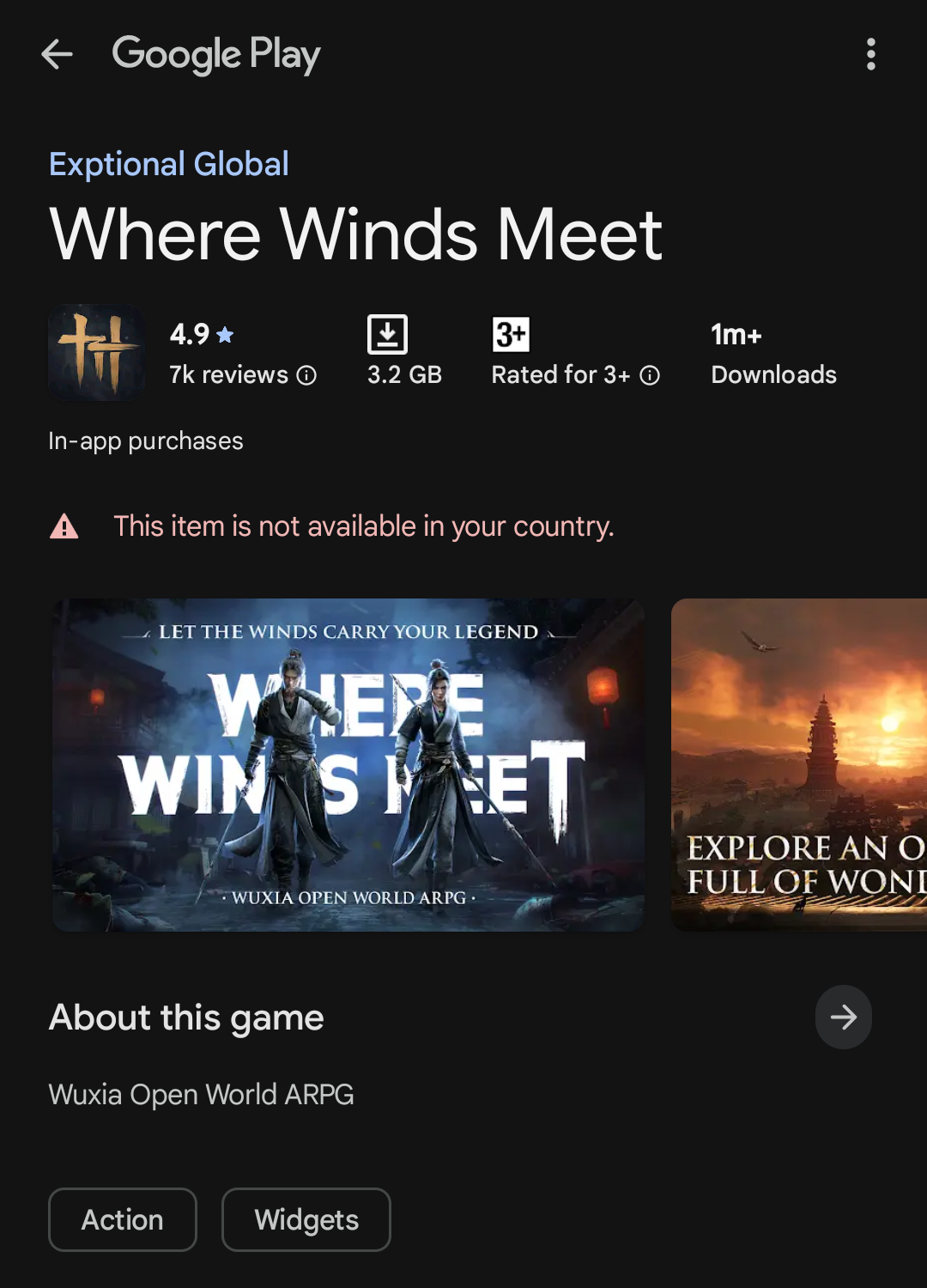
- App not available in your country/region: you may not be able to install the mobile version, so the widget won’t appear.
- No widgets section in the store listing: widgets can be device/version dependent.
- Can’t configure the widget: open the mobile game once and log in, then try again.

Option 2: Build a clean desktop “daily assistant” (PC/Mac)
If you play on PC/console and just want something always visible, this is the cleanest alternative to theWhere Winds Meet desktop widget: turn a couple of pages into small “app-like” windows (a reset timer and a checklist).
Windows (Edge/Chrome)
- Open Reset timer in your browser.
- Create an “app window” (browser wording varies): Install app or Create shortcut → Open as window.
- Pin it to taskbar and keep the window small on a second monitor (or a corner).
- Repeat with Checklist if you want a routine tracker next to the timer.
macOS (Safari/Chrome)
- Open Reset timer in Safari/Chrome.
- Use the browser’s shortcut/app feature (for example: Add to Dock or Create shortcut → Open as window).
- Keep it on a separate Space or set it beside your game window.
If you also play on iPhone, macOS can show some iPhone widgets on desktop depending on your OS/version.
FAQ
Is there a downloadable Windows “Where Winds Meet desktop widget”?
Not that we can reliably point to as an official PC widget. Most “daily assistant widget” mentions refer to the mobile app’s home-screen widget. On Windows, the practical equivalent is a pinned timer/checklist window.
What is the fastest setup if I just want to stop missing resets?
Keep Reset timer pinned, and optionally add Checklist for your daily routine.
Why can’t I find the widget in Google Play / App Store?
Widget availability can be region/version/device dependent. If the mobile app isn’t available in your country, you won’t be able to use the official mobile widget there. In that case, use a pinned browser window as your desktop “assistant” instead.